Set up your environment
Ende comes with many of the tools that are commonly needed for developing applications, including a full language server (LSP) to help power your IDE of choice. This page will help you set up your environment to get the most out of Ende while you are developing.
We'll cover:
- How to use Ende with your favorite editor/IDE
- How to generate shell completions
Setting up your editor/IDE
Any editor with a language server client can use Ende's: run ende lsp and send
settings under the ende section (or as initializationOptions). The server
also reads a deno section, so clients written for Deno's language server work
once they start ende lsp. The
LSP integration reference lists the
settings.
JetBrains IDEs
JetBrains IDEs support Ende through their Deno plugin. Open your IDE and go to
File > Settings, navigate to Plugins, search for Deno and install
the plugin.
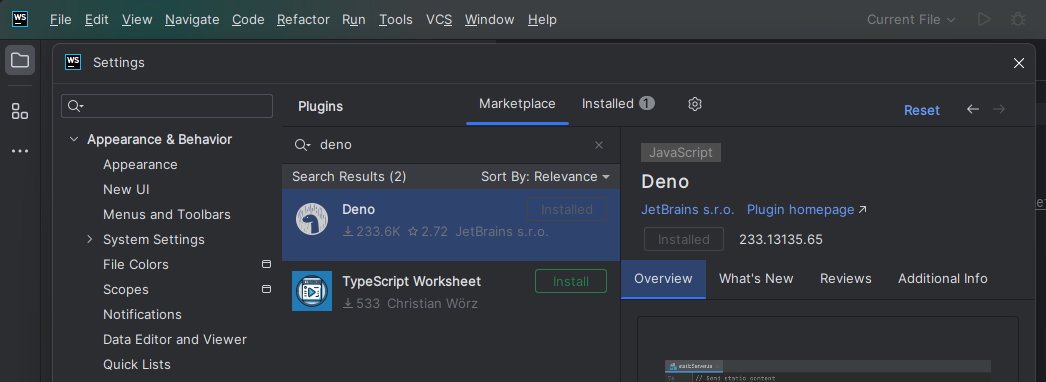
To configure the Plugin, go to File > Settings again. Navigate to
Languages & Frameworks > JavaScript Runtime. Switch Preferred
Runtime to Deno. Under Deno, specify the path to the ende
executable.
Check out this blog post to learn more about the plugin, which was written for Deno.
Vim/Neovim
The recommended setup for Neovim 0.11+ is the built-in language server client
with nvim-lspconfig, which ships a
ready-made denols configuration
for Deno's language server. Ende's language server speaks the same protocol, so
use that configuration with cmd pointing at ende lsp.
If you also have ts_ls (the TypeScript language server) configured, both
servers can attach to the same buffer. Recent versions of nvim-lspconfig prevent
this out of the box: their ts_ls configuration skips projects that contain a
ende.json, ende.jsonc, or ende.lock. If you are on an older version of the
plugin, or you configure the servers yourself, give each server distinct
root_markers and set workspace_required = true on ts_ls so that it only
attaches when it finds a package.json or tsconfig.json:
vim.lsp.config('denols', {
    cmd = { "ende", "lsp" },
    root_markers = { "ende.json", "ende.jsonc" },
})

vim.lsp.config('ts_ls', {
    root_markers = { "package.json", "tsconfig.json" },
    workspace_required = true,
})

vim.lsp.enable({ 'denols', 'ts_ls' })
This assumes a ende.json or ende.jsonc lives at the root of your Ende
project. Note that workspace_required needs Neovim 0.11.1 or later. The older
single_file_support option has no effect here: it is only read by the
deprecated require('lspconfig').setup() API and is silently ignored by
vim.lsp.config().
Kickstart.nvim and Mason LSP. If you use
kickstart.nvim, add the equivalent
configuration to the servers table in your init.lua:
local servers = {
        -- ... some configuration
        ts_ls = {
            root_markers = { "package.json", "tsconfig.json" },
            workspace_required = true,
            settings = {},
        },
        denols = {
            cmd = { "ende", "lsp" },
            root_markers = { "ende.json", "ende.jsonc" },
            settings = {},
        },
    }
Other Vim/Neovim plugins. The plugins below were written for Deno and start
deno lsp by default; configure each to run ende lsp instead:
-
ALE: supports the Deno language server, which works for Ende with the executable set to
ende. See:help ale-typescript-denofor configuration options. -
coc.nvim: install coc-deno with
:CocInstall coc-deno, then run:CocCommand deno.initializeWorkspacein your project. -
vim-easycomplete: once installed, run
:InstallLspServer denoand point it at theendebinary. See the project README for details. -
vim-lsp: register the Ende language server in your
.vimrc:if executable('ende') let server_config = { \ 'name': 'ende', \ 'cmd': {server_info->['ende', 'lsp']}, \ 'allowlist': ['typescript', 'javascript', 'javascriptreact', 'typescriptreact'], \ } if exists('$ENDE_ENABLE') let ende_enabled = $ENDE_ENABLE == '1' let server_config['workspace_config'] = { 'ende': { 'enable': ende_enabled ? v:true : v:false } } endif au User lsp_setup call lsp#register_server(server_config) endifActivate the server either by placing a
ende.json/ende.jsoncin the working directory or by settingENDE_ENABLE=1. To highlight syntax in intellisense tooltips, also add:let g:markdown_fenced_languages = ["ts=typescript"]
Zed
The Zed editor can integrate the Ende language server via the
Deno extension,
with its binary set to ende.
Helix
Helix comes with built-in language server support.
Enabling connection to the Ende language server requires changes in the
languages.toml configuration file.
[[language]]
name = "typescript"
roots = ["ende.json", "ende.jsonc"]
file-types = ["ts", "tsx"]
auto-format = true
language-servers = ["ende-lsp"]

[[language]]
name = "javascript"
roots = ["ende.json", "ende.jsonc"]
file-types = ["js", "jsx"]
auto-format = true
language-servers = ["ende-lsp"]

[language-server.ende-lsp]
command = "ende"
args = ["lsp"]
config.ende.enable = true
Emacs
lsp-mode. lsp-mode ships a client
for Deno's language server, which works for Ende with
lsp-clients-deno-server
set to "ende".
eglot. You can also use the built-in Ende language server via
eglot. An example configuration:
(add-to-list 'eglot-server-programs '((js-mode typescript-mode) . (eglot-deno "ende" "lsp")))

  (defclass eglot-deno (eglot-lsp-server) ()
    :documentation "A custom class for ende lsp.")

  (cl-defmethod eglot-initialization-options ((server eglot-deno))
    "Passes through required ende initialization options"
    (list
      :enable t
      :unstable t
      :typescript
        (:inlayHints
          (:variableTypes
            (:enabled t))
          (:parameterTypes
            (:enabled t)))))
Sublime Text
Sublime Text supports connecting to the Ende
language server via the LSP package.
Once it's installed, add a minimal Ende client to your .sublime-project:
{
  "settings": {
    "LSP": {
      "ende": {
        "command": ["ende", "lsp"],
        "enabled": true,
        "selector": "source.ts | source.tsx | source.js | source.jsx",
        "initializationOptions": {
          "enable": true,
          "lint": true
        }
      }
    }
  }
}
For the full set of supported initializationOptions keys (such as config,
importMap, and unstable), see the
Settings section of the LSP integration reference
and the
LSP package documentation.
Kakoune
Kakoune supports connecting to the Ende language server
via the kak-lsp client. Once
kak-lsp is installed an
example of configuring it up to connect to the Ende language server is by adding
the following to your kak-lsp.toml:
[language.typescript]
filetypes = ["typescript", "javascript"]
roots = [".git"]
command = "ende"
args = ["lsp"]
[language.typescript.settings.ende]
enable = true
lint = true
Nova
The Nova editor can integrate the Ende language server via
the
Deno extension,
with its executable set to ende.
Pulsar
The Pulsar editor, formerly known as Atom supports
integrating with the Ende language server via the
atom-ide-deno package.
atom-ide-deno requires that the CLI (set its path to ende) be installed and
the atom-ide-base package
to be installed as well.
Shell completions
Built into the Ende CLI is support to generate shell completion information for
the CLI itself. By using ende completions <shell>, the Ende CLI will output to
stdout the completions. Current shells that are supported:
- bash
- elvish
- fish
- powershell
- zsh
bash example
Output the completions and add them to the environment:
ende completions bash > /usr/local/etc/bash_completion.d/ende.bash
source /usr/local/etc/bash_completion.d/ende.bash
PowerShell example
Output the completions:
ende completions powershell >> $profile
.$profile
This will create a Powershell profile at
$HOME\Documents\WindowsPowerShell\Microsoft.PowerShell_profile.ps1, and it
will be run whenever you launch the PowerShell.
zsh example
You should have a directory where the completions can be saved:
mkdir ~/.zshThen output the completions:
ende completions zsh > ~/.zsh/_endeAnd ensure the completions get loaded in your ~/.zshrc:
fpath=(~/.zsh $fpath)
autoload -Uz compinit
compinit -u
If after reloading your shell and completions are still not loading, you may
need to remove ~/.zcompdump/ to remove previously generated completions and
then compinit to generate them again.
zsh example with ohmyzsh and antigen
ohmyzsh is a configuration framework for zsh and can make it easier to manage your shell configuration. antigen is a plugin manager for zsh.
Create the directory to store the completions and output the completions:
mkdir ~/.oh-my-zsh/custom/plugins/ende
ende completions zsh > ~/.oh-my-zsh/custom/plugins/ende/_ende
Then your .zshrc might look something like this:
source /path-to-antigen/antigen.zsh

# Load the oh-my-zsh's library.
antigen use oh-my-zsh

antigen bundle ende
fish example
Output the completions to a ende.fish file into the completions directory in
the fish config folder:
ende completions fish > ~/.config/fish/completions/ende.fishDynamic completions
Pass the --dynamic flag to generate completions that are aware of your
project. Currently this lets your shell suggest the task names defined in your
ende.json when you type ende task <TAB>:
ende completions --dynamic zsh > ~/.zsh/_endeDynamic completions are unstable and may change in a future release.
Building your own LSP integration
If you're building or maintaining a community integration with the Ende language
server, see the LSP integration reference
and join the #dev-lsp channel on the Ende Discord.