Debugging
Ende supports the V8 Inspector Protocol used by Chrome, Edge and Node.js. This makes it possible to debug Ende programs using Chrome DevTools or other clients that support the protocol.
To activate debugging capabilities run Ende with one of the following flags:
--inspect--inspect-wait--inspect-brk
--inspect
Using the --inspect flag will start your program with an inspector server
which allows client connections from tools that support the V8 Inspector
Protocol, for example Chrome DevTools.
Visit chrome://inspect in a Chromium derived browser to connect Ende to the
inspector server. This allows you to inspect your code, add breakpoints, and
step through your code.
ende run --inspect your_script.tsYou can optionally specify a host and port for the inspector server. Both the full address and a bare port number are accepted:
# Default: listen on 127.0.0.1:9229
ende run --inspect your_script.ts

# Custom port
ende run --inspect=9230 your_script.ts

# Custom host and port
ende run --inspect=0.0.0.0:9229 your_script.ts
--inspect-publish-uid
By default, Ende prints the inspector WebSocket URL to stderr when it starts
listening. You can control this with --inspect-publish-uid:
stderr(default) — prints the URL to stderr on startuphttp— exposes the URL via the/json/listHTTP endpoint on the inspector port, instead of printing it; useful for programmatic tooling that polls for available targets
ende run --inspect --inspect-publish-uid=http your_script.tsNote
If you use the --inspect flag, the code will start executing immediately. If
your program is short, you might not have enough time to connect the debugger
before the program finishes execution.
In such cases, try running with --inspect-wait or --inspect-brk flag
instead, or add a timeout at the end of your code.
--inspect-wait
The --inspect-wait flag will wait for a debugger to connect before executing
your code.
ende run --inspect-wait your_script.ts--inspect-brk
The --inspect-brk flag will wait for a debugger to connect before executing
your code and then put a breakpoint in your program as soon as you connect,
allowing you to add additional breakpoints or evaluate expressions before
resuming execution.
This is the most commonly used inspect flag. JetBrains IDEs use this flag by default.
ende run --inspect-brk your_script.tsActivating the inspector at runtime
The --inspect flags start the inspector server when the process launches. If
you instead want to open it on demand in an already running program, send the
process a SIGUSR1 signal. This is handy
for long-running processes such as servers, where you only want a debugger
listening after some condition is met rather than for the whole lifetime of the
process.
Starting inspector with a signal
On Linux and macOS you can also activate the inspector from outside the process
by sending it the SIGUSR1 signal. The inspector server starts on the default
127.0.0.1:9229 without pausing execution and prints the usual banner to
stderr:
$ ende run server.ts &
$ kill -USR1 <pid>
Debugger listening on ws://127.0.0.1:9229/ws/...
Visit chrome://inspect to connect to the debugger.
This is useful for debugging a long-running process, such as a server, that was
started without an --inspect flag and cannot easily be restarted. It requires
no permissions and no cooperation from the program's code.
A few details to be aware of:
- If the inspector server is already running (an
--inspect*flag, or a previousSIGUSR1), the signal has no effect. - The signal handler is installed shortly after startup, so this is intended for programs that run for longer than about half a second.
- Signal listeners added with
Ende.addSignalListener("SIGUSR1")keep working alongside this handler. SIGUSR1does not exist on Windows, so this is not available there.
Example with Chrome DevTools
Let's try debugging a program using Chrome Devtools. For this, we'll use
@ende/http/file-server, a static file server.
Use the --inspect-brk flag to break execution on the first line:
$ ende run --inspect-brk -RN jsr:@ende/http/file-server
Debugger listening on ws://127.0.0.1:9229/ws/1e82c406-85a9-44ab-86b6-7341583480b1
...
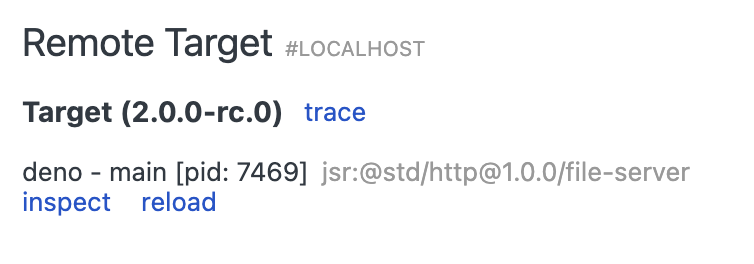
In a Chromium derived browser such as Google Chrome or Microsoft Edge, open
chrome://inspect and click Inspect next to target:
It might take a few seconds after opening the DevTools to load all modules.
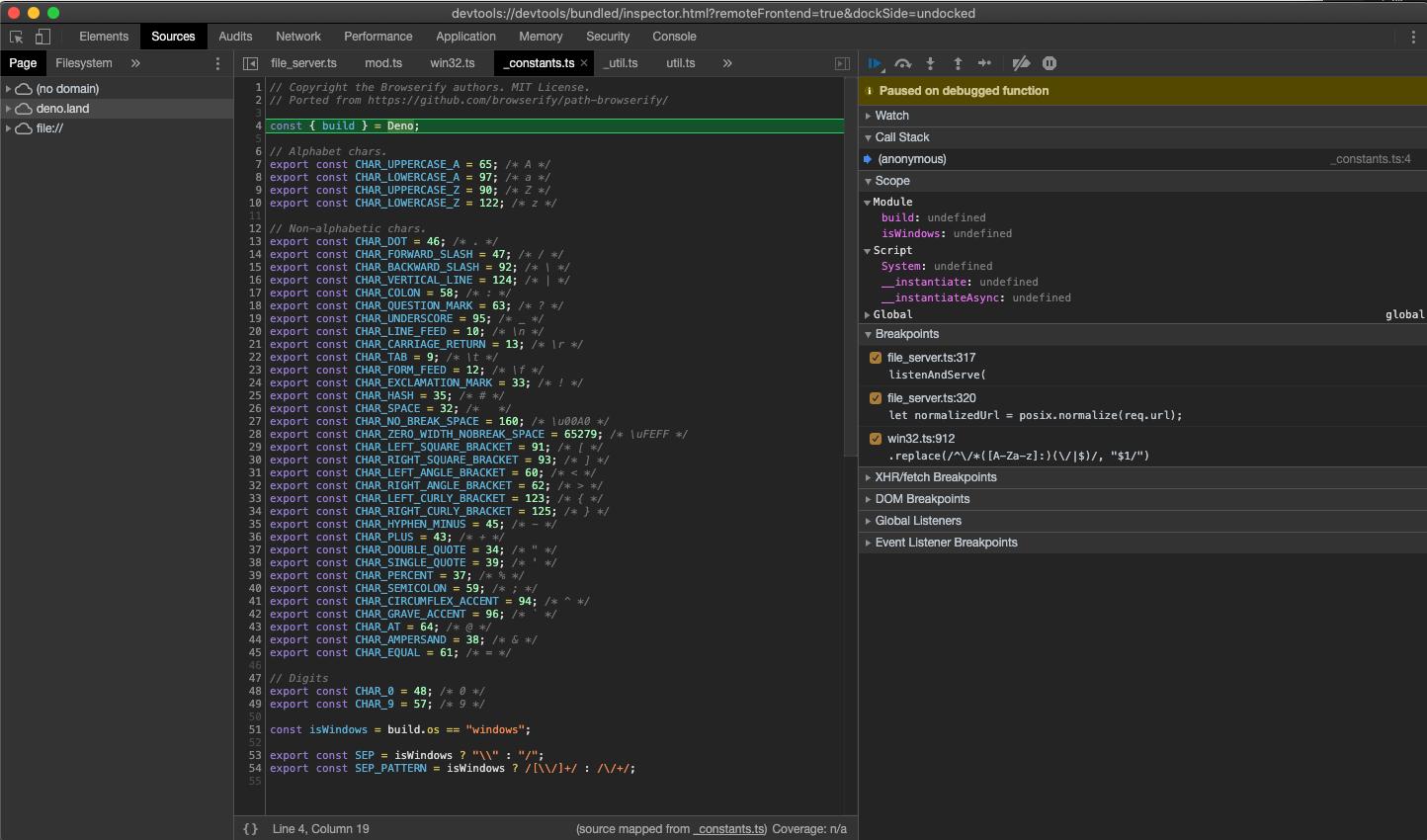
You might notice that DevTools pauses execution on the first line of
_constants.ts instead of file_server.ts. This is expected behavior caused by
the way ES modules are evaluated in JavaScript (_constants.ts is left-most,
bottom-most dependency of file_server.ts so it is evaluated first).
At this point all source code is available in the DevTools, so let's open up
file_server.ts and add a breakpoint there; go to "Sources" pane and expand the
tree:
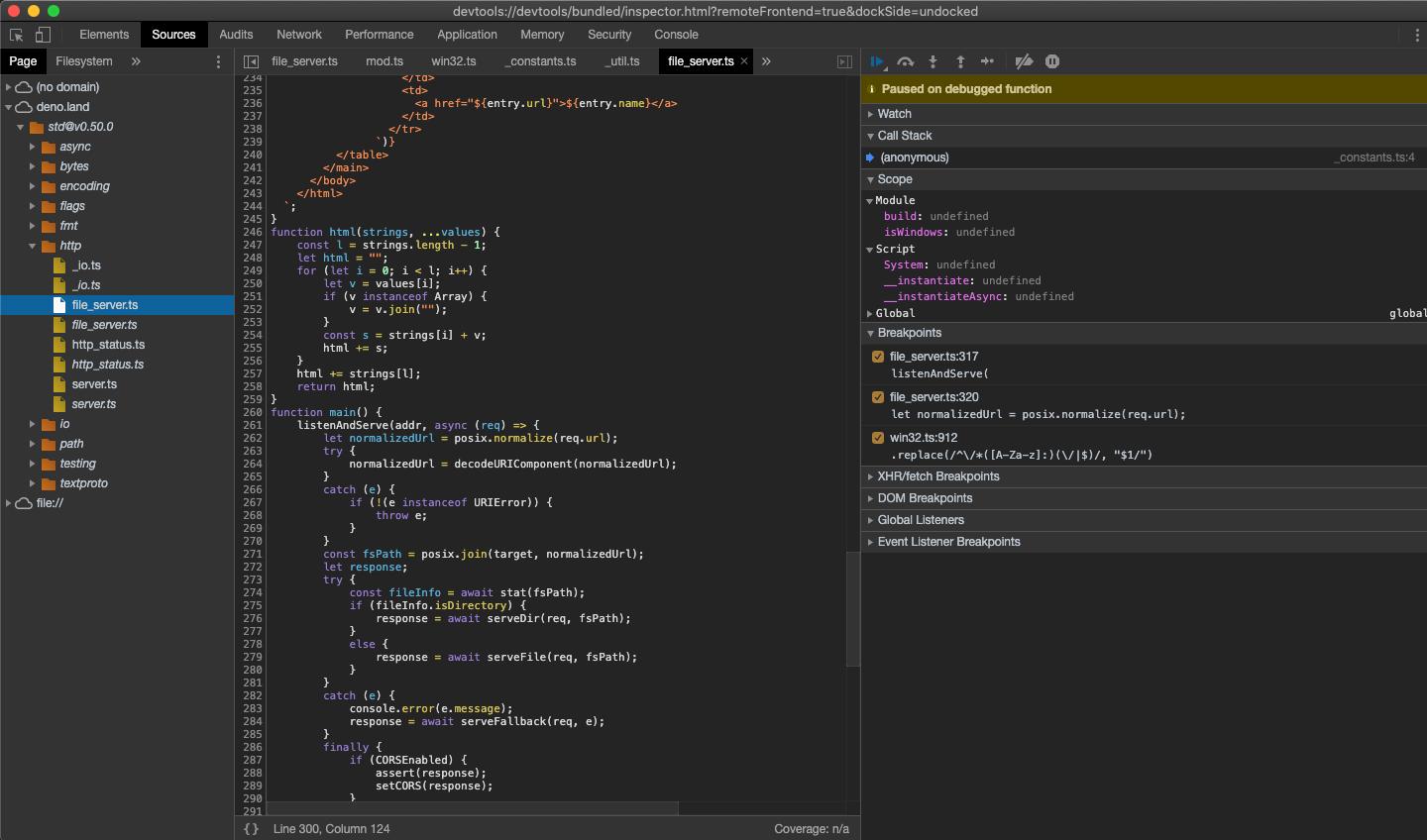
Looking closely you'll find duplicate entries for each file; one written
regularly and one in italics. The former is compiled source file (so in the case
of .ts files it will be emitted JavaScript source), while the latter is a
source map for the file.
Next, add a breakpoint in the listenAndServe method:
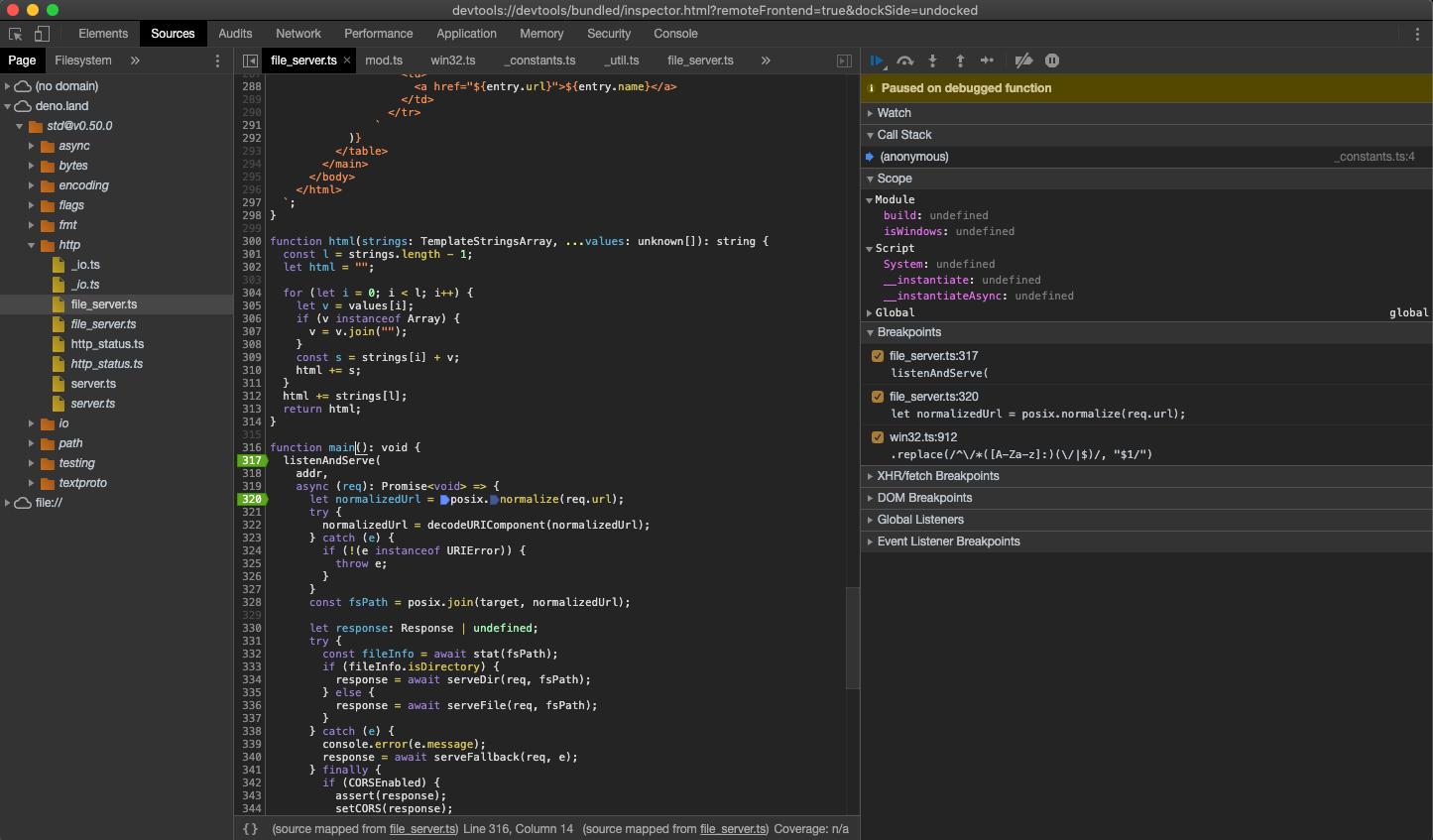
As soon as we've added the breakpoint, DevTools automatically opens up the source map file, which allows us step through the actual source code that includes types.
Now that we have our breakpoints set, we can resume the execution of our script so that we can inspect an incoming request. Hit the "Resume script execution" button to do so. You might even need to hit it twice!
Once our script is running, try send a request and inspect it in Devtools:
curl http://0.0.0.0:4507/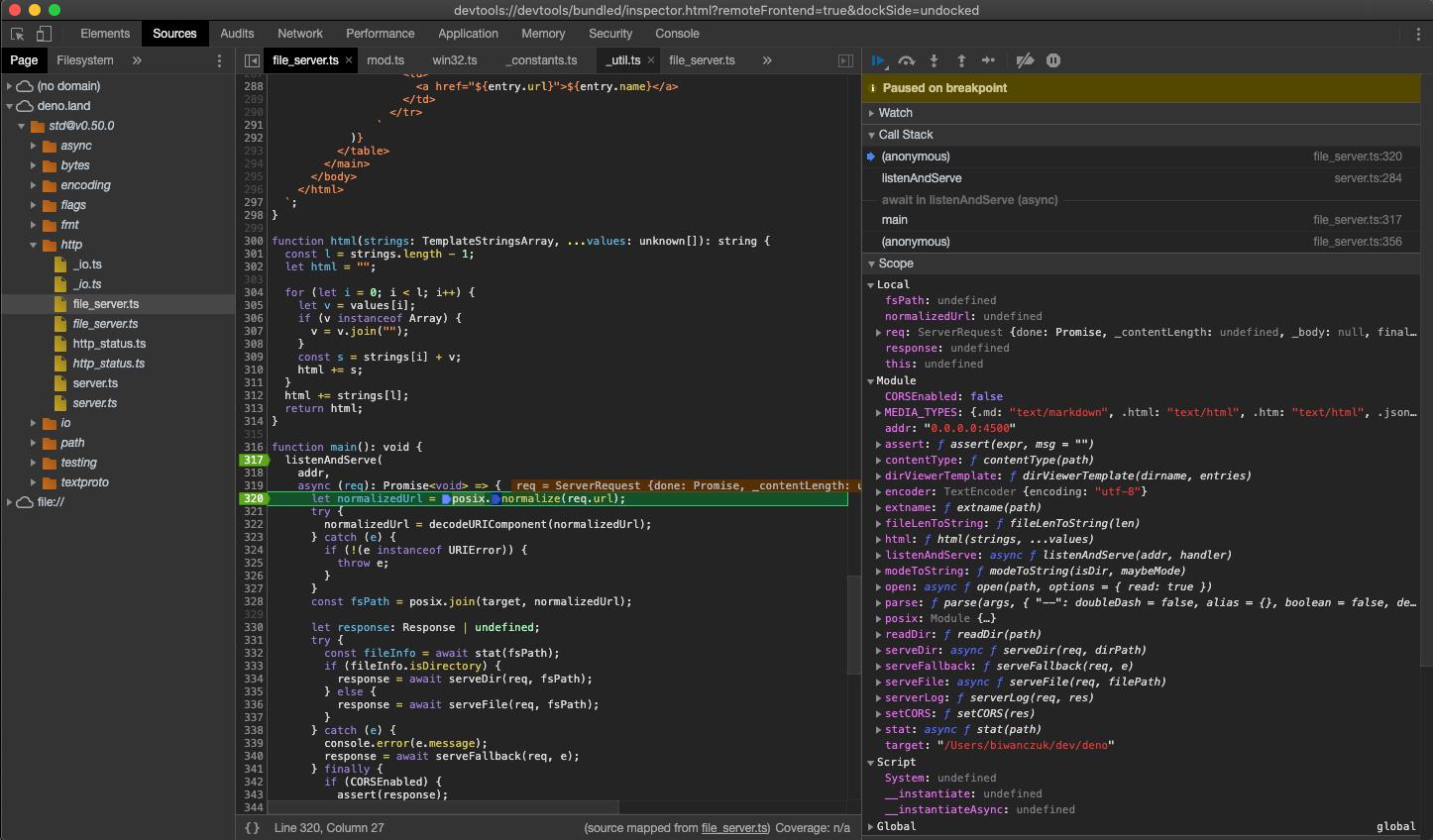
At this point we can introspect the contents of the request and go step-by-step to debug the code.
Inspecting network traffic
Chrome DevTools can inspect network traffic made by your program in the same way
it inspects traffic in a browser tab. Run your program with --inspect-wait (or
--inspect / --inspect-brk), open chrome://inspect in a Chromium derived
browser, click Inspect on the Ende target, and switch to the Network
tab.
The following built-in APIs are wired into the Network tab:
fetch()— requests appear withType: fetchWebSocket— client connections appear alongside HTTP requests, with handshake status and headers from the upgrade response, message frames, and a close event when the socket is closedEnde.upgradeWebSocket()— server-side WebSocket upgrades are instrumented too, so you can inspect both sides of a connection from an Ende-to-Ende handshake
For each request you can see the URL, method, status code, request and response headers, request and response bodies, and timing information.
Let's try it with a small program that uses fetch():
const res = await fetch("https://api.github.com/repos/denoland/deno");
console.log(res.status, (await res.json()).stargazers_count);
Run it with --inspect-wait so the program pauses until DevTools connects:
$ ende run --inspect-wait --allow-net net.ts
Debugger listening on ws://127.0.0.1:9229/...
Visit chrome://inspect to connect to the debugger.
Ende is waiting for debugger to connect.
Open chrome://inspect, click Inspect on the Ende target, and switch to the
Network tab. The fetch() request shows up as a regular network entry, with
the request and response panes populated:
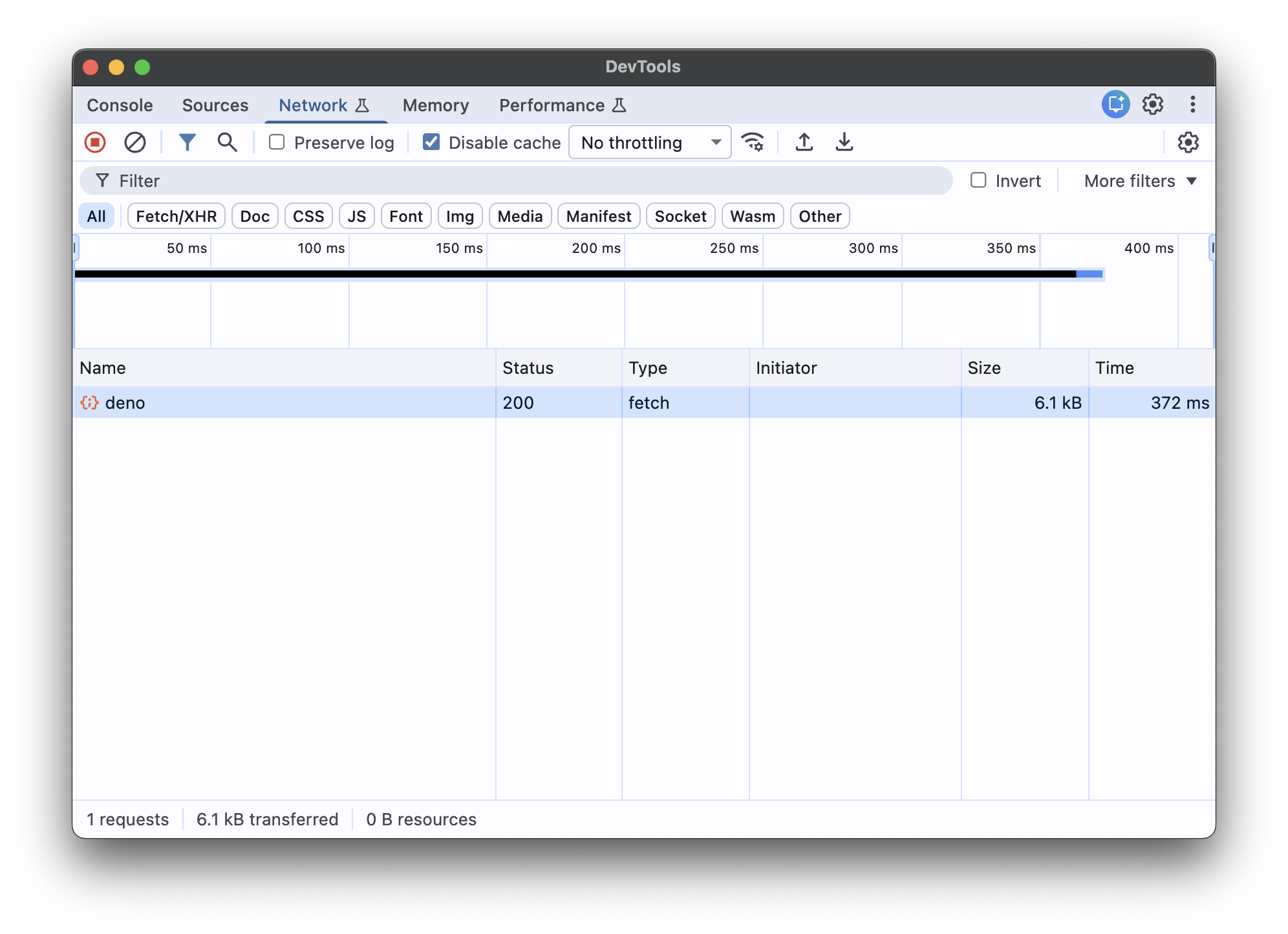
Click a request to see its headers, payload, response body, and timing breakdown:
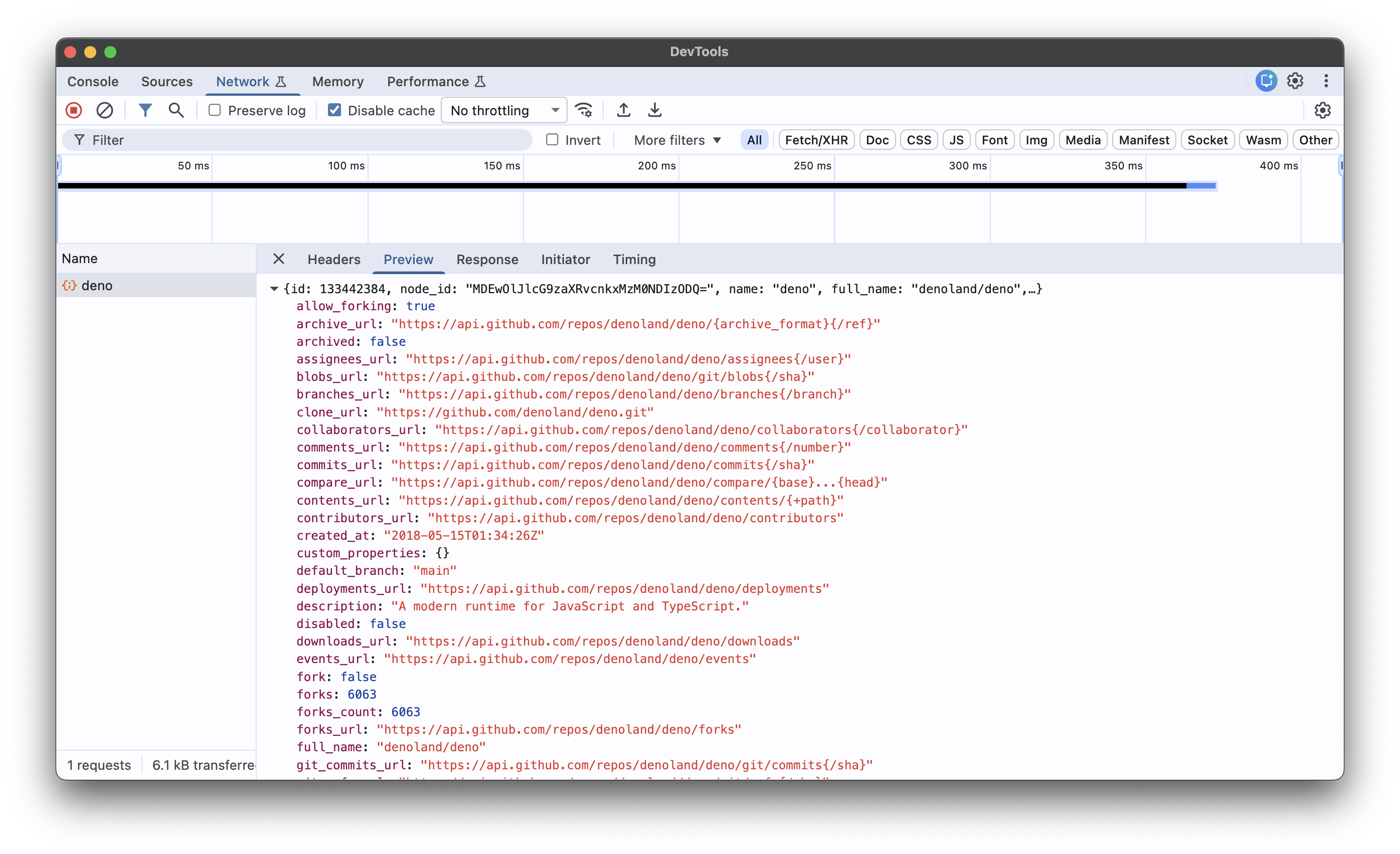
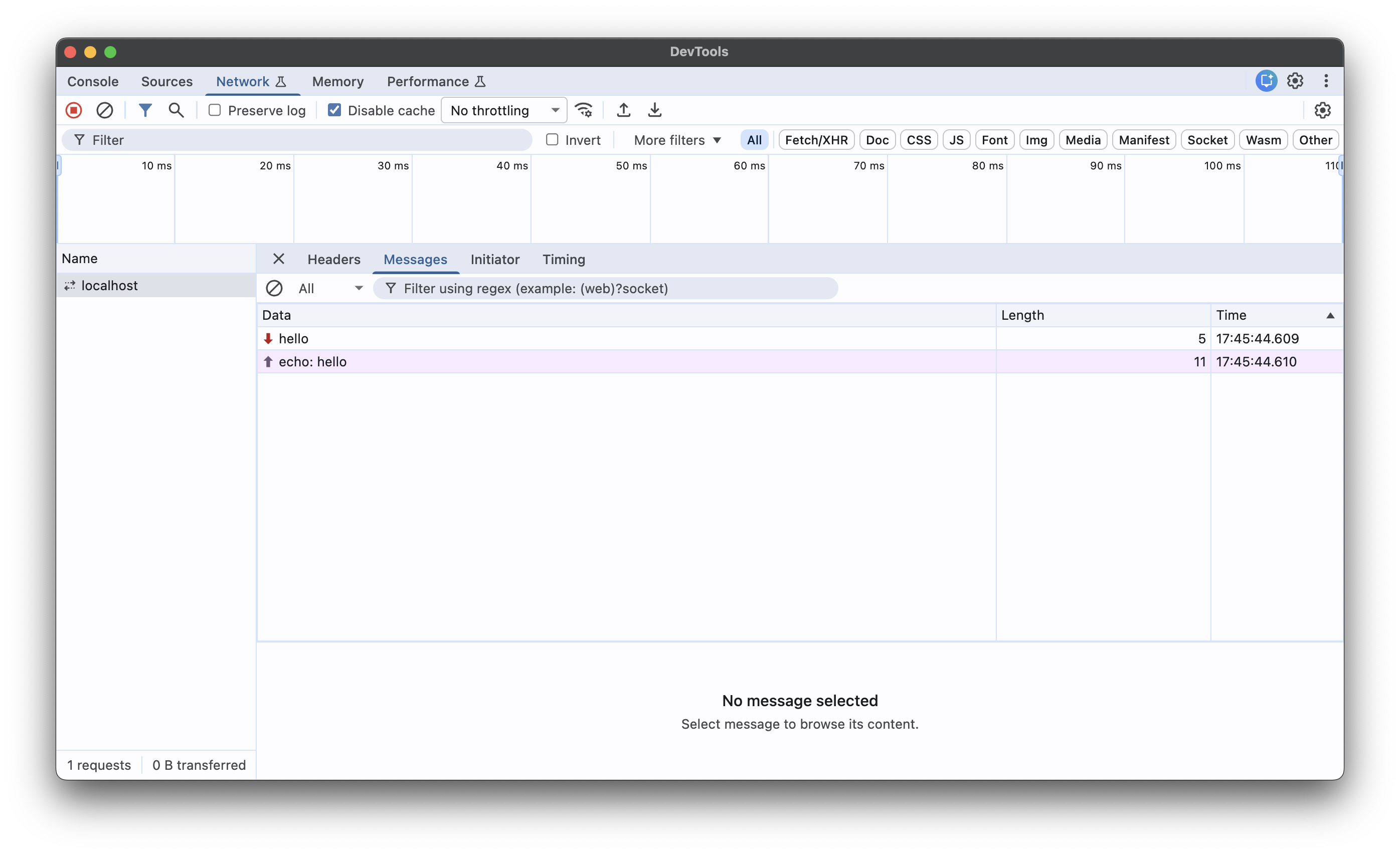
WebSocket connections appear in the same Network tab, with messages and the
close event surfaced as the connection progresses:
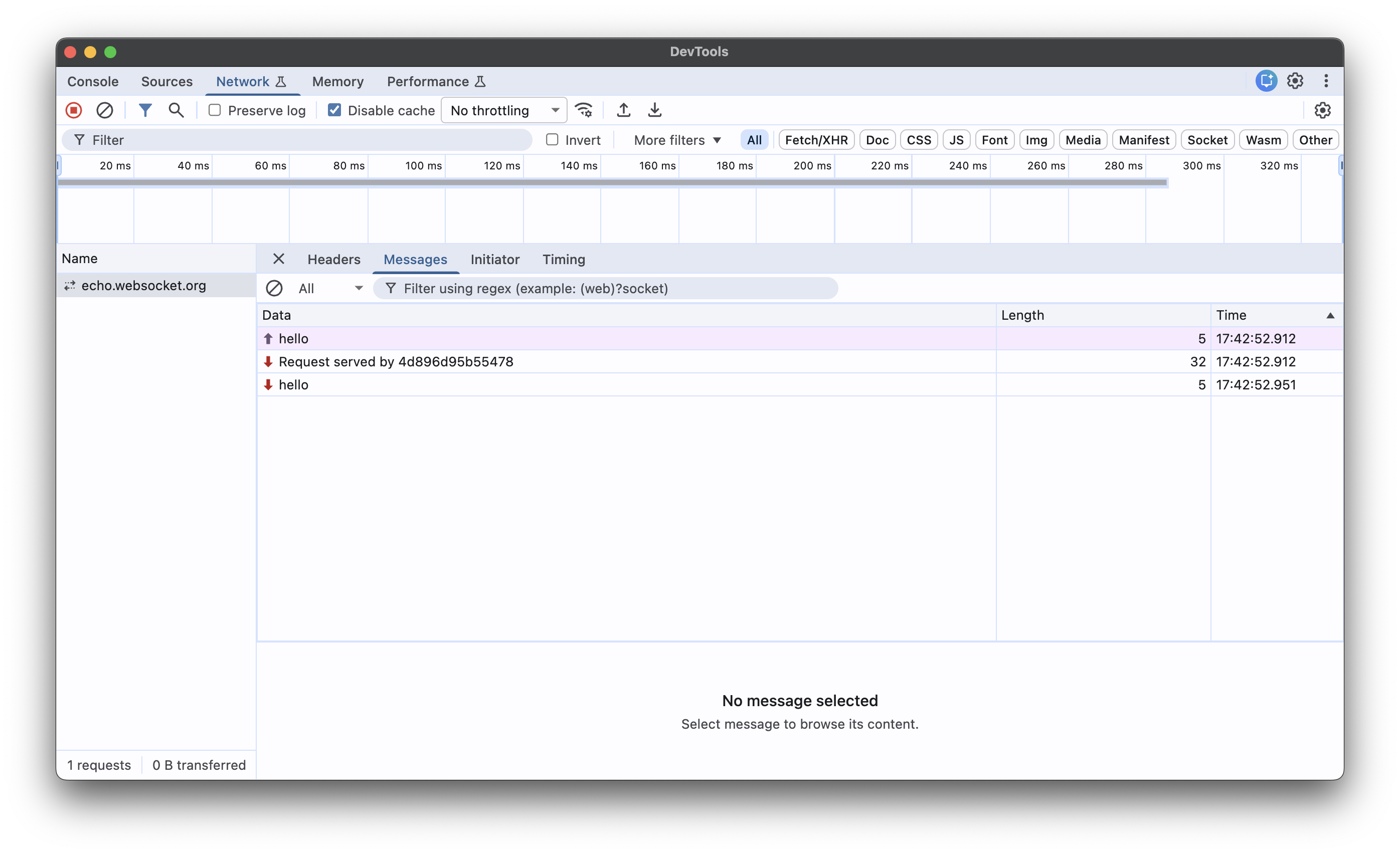
Server-side WebSockets created with
Ende.upgradeWebSocket() are also
instrumented, so you can inspect both sides of a connection — the outgoing
client WebSocket and the server upgrade that accepts it. For example, a small
echo server:
Ende.serve({ port: 8000 }, (req) => {
  if (req.headers.get("upgrade") !== "websocket") {
    return new Response("send a WebSocket request", { status: 426 });
  }
  const { socket, response } = Ende.upgradeWebSocket(req);
  socket.onmessage = (e) => socket.send(`echo: ${e.data}`);
  return response;
});
$ ende run --inspect-wait --allow-net ws-server.tsAfter connecting DevTools and resuming execution, connect to the server from
another terminal (for example with ende eval):
ende eval 'const ws = new WebSocket("ws://localhost:8000");
  ws.onopen = () => ws.send("hello");
  ws.onmessage = (e) => { console.log(e.data); ws.close(); };'
The upgrade and the message frames show up in the Network tab of the server's DevTools session:
Note
When no debugger is attached, the network instrumentation has effectively no
overhead — the events are only emitted while a session has opted in via
Network.enable.
JetBrains IDEs
Note: make sure you have the Deno plugin installed and enabled in Preferences / Settings | Plugins. For more information, see this blog post.
You can debug Ende using your JetBrains IDE by right-clicking the file you want
to debug and selecting the Debug 'Ende: <file name>' option.
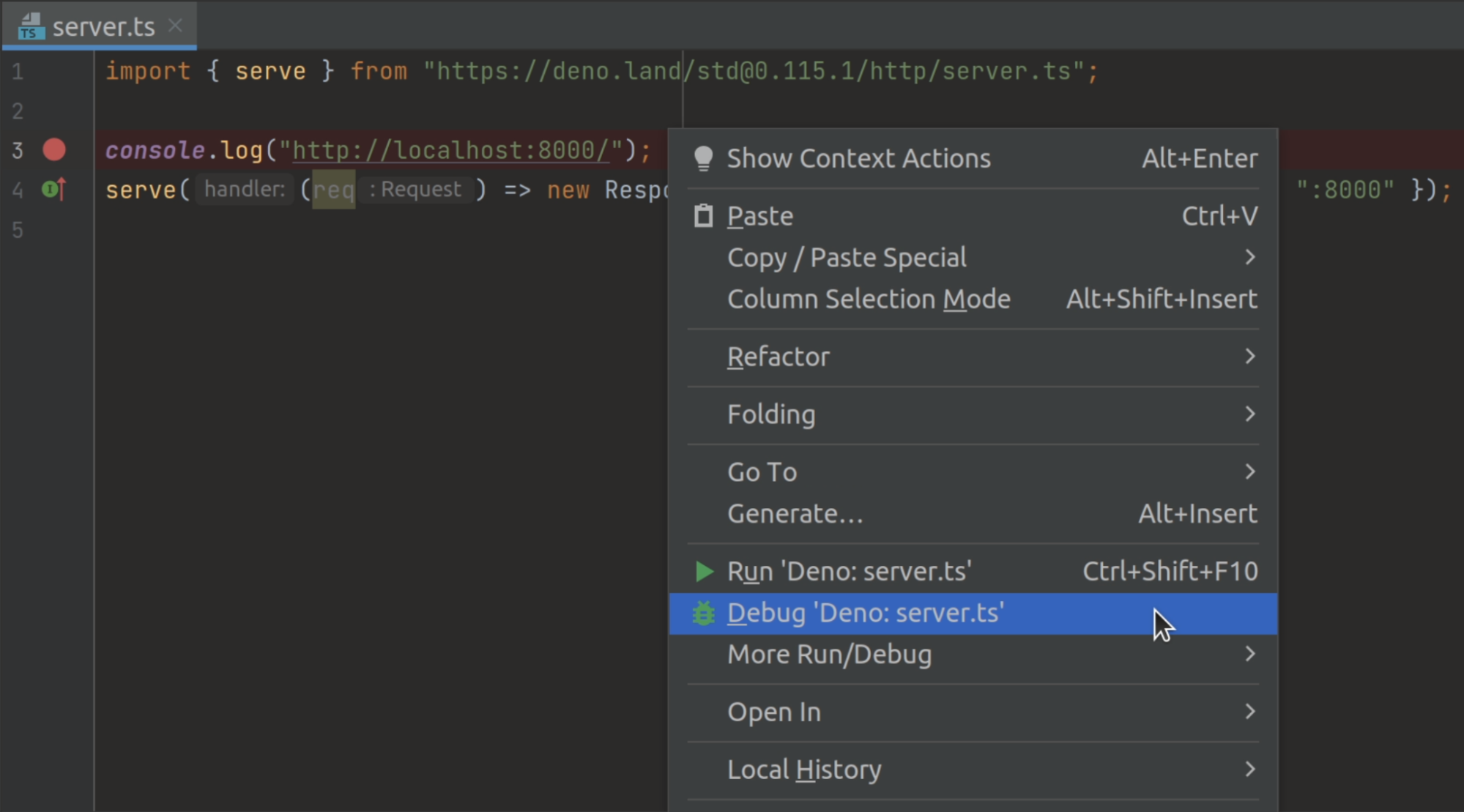
This will create a run/debug configuration with no permission flags set. If you
want to configure them, open your run/debug configuration and add the required
flags to the Command field.
--log-level=debug
If you're having trouble connecting to the inspector, you can use the
--log-level=debug flag to get more information about what's happening. This
will show you information like module resolution, network requests, and other
permission checks.
ende run --inspect-brk --log-level=debug your_script.tsCPU profiling
Ende has a built-in CPU profiler: collect a profile while your program runs, then read it as a Markdown report, an interactive flamegraph, or in Chrome DevTools. See CPU profiling for the flags, report formats, and analysis tips.
OpenTelemetry integration
For production applications or complex systems, OpenTelemetry provides a more comprehensive approach to observability and debugging. Ende includes built-in support for OpenTelemetry, allowing you to:
- Trace requests through your application
- Monitor application performance metrics
- Collect structured logs
- Export telemetry data to monitoring systems
OTEL_ENDE=true ende run your_script.tsThis will automatically collect and export runtime observability data, including:
- HTTP request traces
- Runtime metrics
- Console logs and errors
For full details on Ende's OpenTelemetry integration, including custom metrics, traces, and configuration options, see the OpenTelemetry documentation.
Debugging Web Workers
Web Workers can be debugged through Chrome DevTools. When you run your program
with any --inspect flag, each spawned worker appears as a separate target in
chrome://inspect alongside the main thread.
const worker = new Worker(import.meta.resolve("./worker.ts"), {
  type: "module"
});
worker.postMessage("start");self.onmessage = (e) => {
console.log("Worker received:", e.data);
// Set breakpoints here in DevTools
};ende run --inspect-brk --allow-read main.tsOpen chrome://inspect, and you will see both main.ts and worker.ts listed
as separate inspectable targets. Click Inspect on the worker target to open
a dedicated DevTools panel for that worker where you can set breakpoints, step
through code, and inspect variables independently of the main thread.
TLS session debugging
Set the SSLKEYLOGFILE environment variable to log TLS session keys to a file.
This enables you to decrypt and inspect encrypted network traffic with tools
like Wireshark:
SSLKEYLOGFILE=./keys.log ende run -N main.tsThen load keys.log in Wireshark (Edit > Preferences > Protocols > TLS >
(Pre)-Master-Secret log filename) to decrypt captured TLS traffic.